
If you want to organize team tasks using Trello Boards app, start with a clear structure and a shared place to track every action.
Trello turns projects into visual workflows that anyone can scan and update in seconds. Its cards, lists, and boards remove confusion about who owns what and when work is due.
This guide explains features, setup, collaboration habits, and where to download trusted Trello apps for your devices.
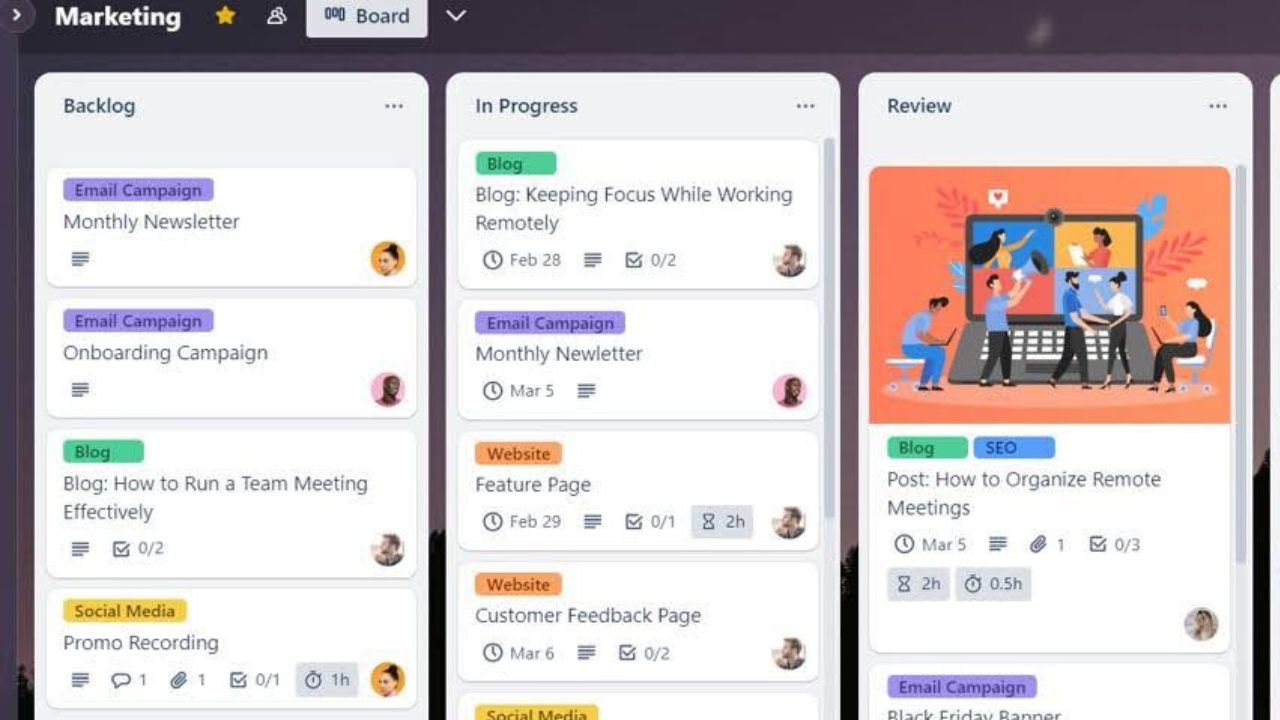
What Is the Trello Boards App and What Are Its Features
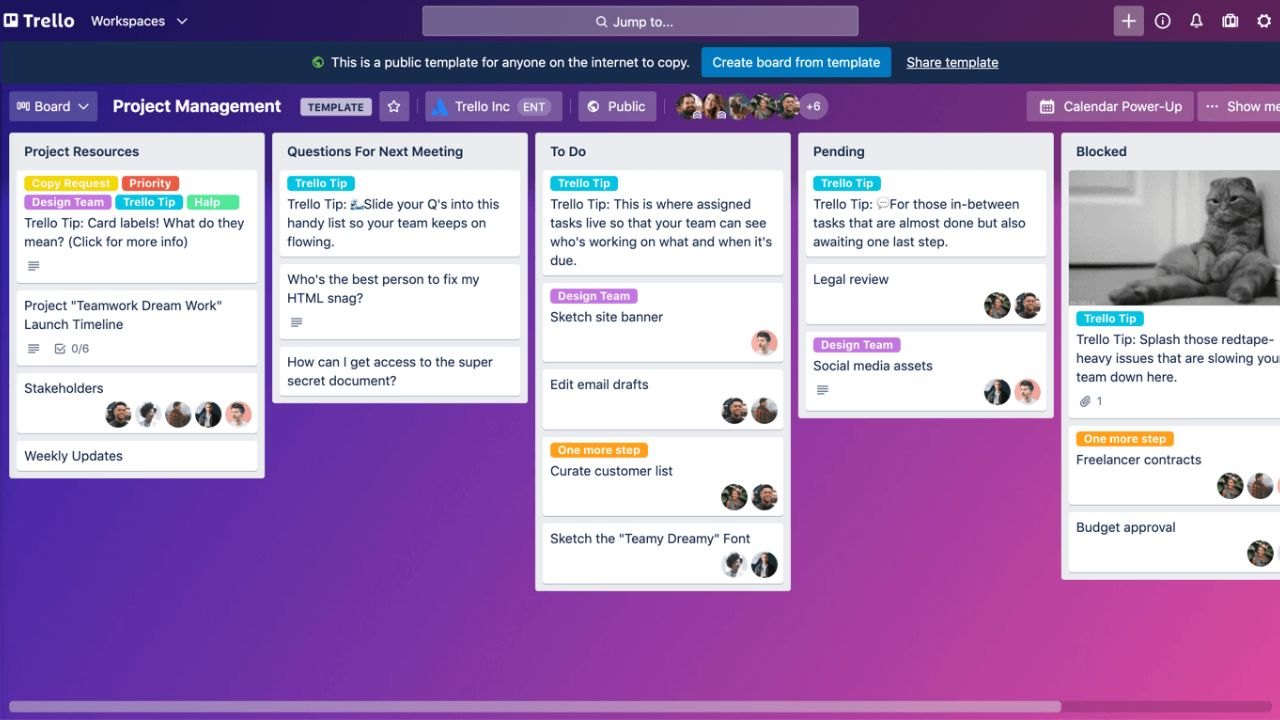
Trello is a visual work management platform built around boards, lists, and cards that map work from idea to done.
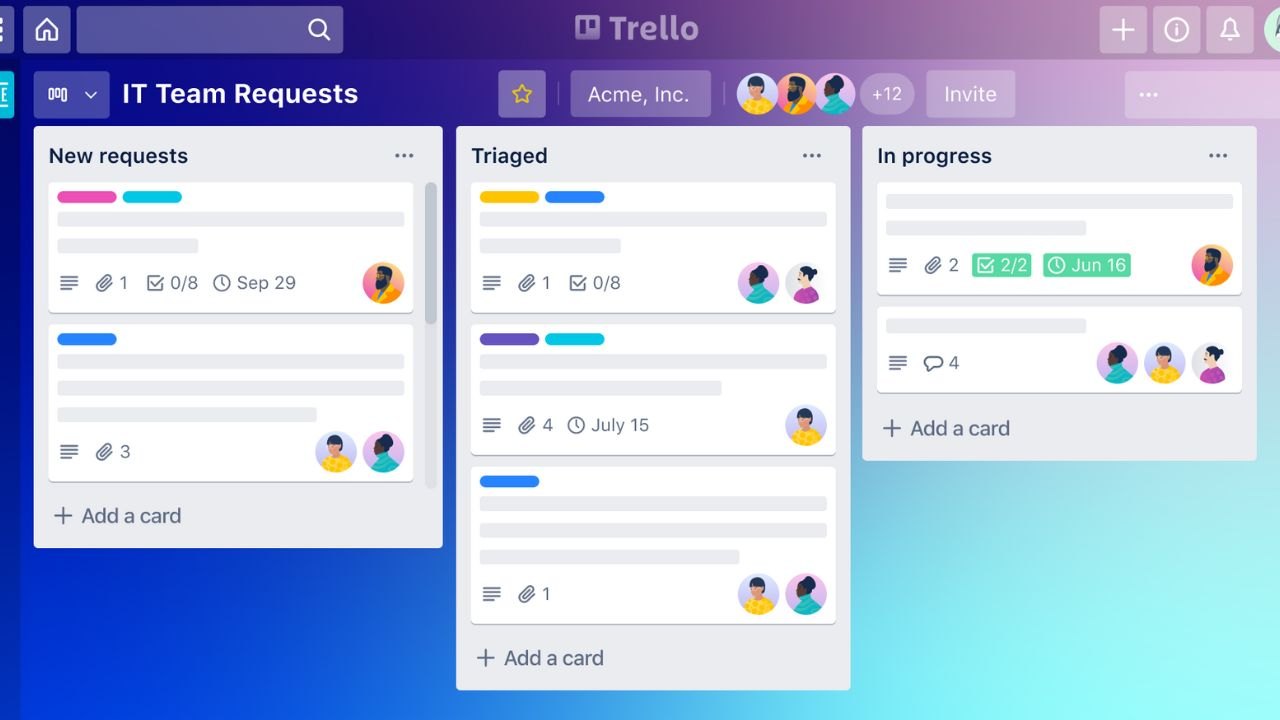
Cards hold details like descriptions, checklists, due dates, members, and file attachments to keep context in one place.
Boards mirror your process while lists show stages such as backlog, doing, and done for instant status at a glance. Views, templates, and automation extend this foundation for teams of any size.
Boards, Lists, and Cards: The Core Model
A board represents a project or team, lists represent stages, and cards represent individual tasks or deliverables.
You can open a card to assign teammates, set due dates, add checklists, and upload files for faster execution.
Labels, comments, and @mentions keep communication tied to the actual work item rather than scattered chats. Trello’s 101 guide also shows quick ways to add multiple cards at once to speed intake.
Views, Power-Ups, and Templates for Scale
As work grows, Trello offers additional views to understand deadlines and dependencies across multiple boards.
Calendar and table-style views make it easier to see due dates and filter cards across workspaces without changing your board design.
Templates help teams start with proven structures for marketing, product, HR, or support and then customize fields. The pricing page outlines which views are included in each plan so you can match features to needs.
Automation With Butler for Routine Tasks
Trello’s native automation, formerly called Butler, lets you create rules and buttons that move cards, set due dates, and assign members automatically.
Teams use triggers like “when a card is moved to Doing” to set owners or add checklists without manual steps.
You can reference variables and custom fields inside rules to keep updates accurate and consistent. Atlassian’s support docs confirm the modern automation system and explain how to build reliable workflows.
How the Trello Boards App Organizes Team Tasks in Practice
Trello centralizes task details so status, owners, and deadlines live with the work instead of in chat or email threads.
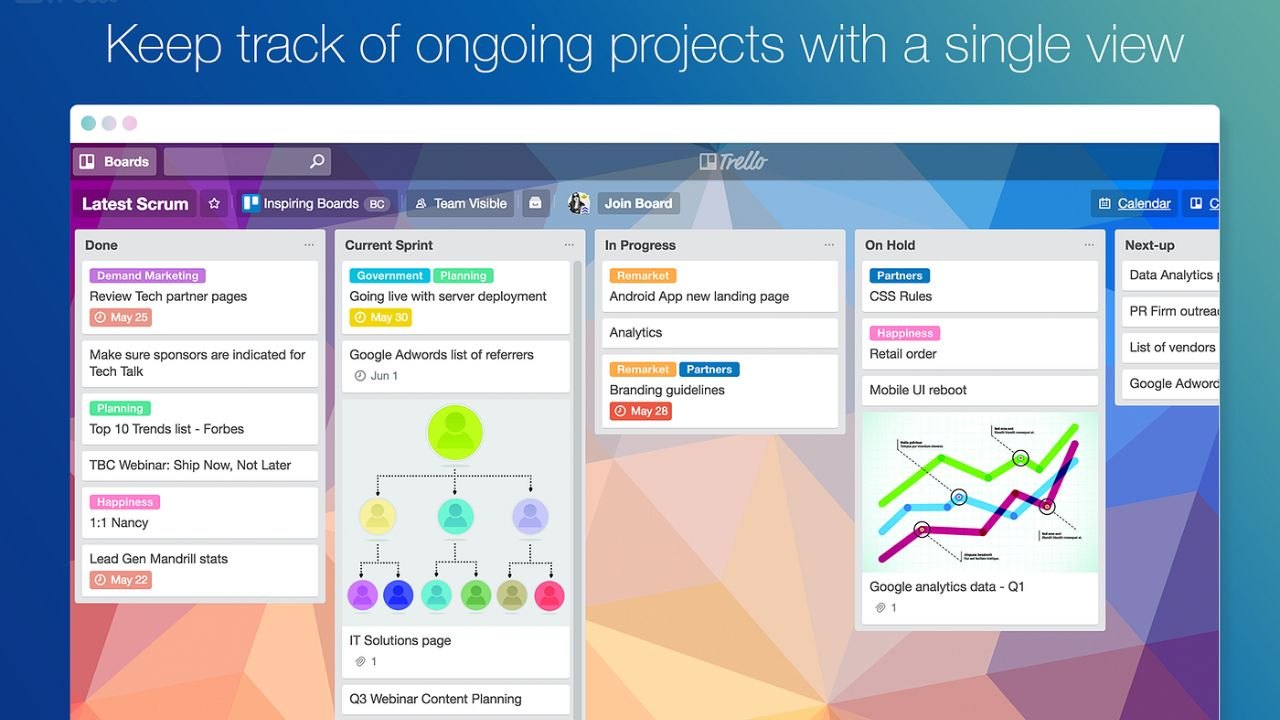
Each card becomes a single source of truth that carries a task from intake to completion.
Comments, mentions, and attachments keep updates visible while notifications alert the right people at the right time. The result is less time searching for answers and more time moving cards forward.
Turning Process Into a Trackable Workflow
Begin by mapping your stages into lists and defining a simple rule for moving cards forward.
Assign card owners and due dates so accountability and timing are always explicit on the card face.
Use checklists for sub-tasks and set reminders to ensure follow-through on time-sensitive items. Trello’s card design makes these details easy to scan, edit, and act on from any device.
Collaboration, Files, and Notifications in One Place
Team members can comment directly on a card, attach files, and resolve questions online without switching tools. Mentions notify the right contributor while keeping the full conversation and decisions attached to the task.
Mobile and email notifications provide timely alerts without flooding teammates who are not involved. This keeps updates focused and preserves a searchable history of decisions.
Cross-Platform Access and New Capture Features
Trello runs in the browser and on Android, iOS, and desktop, which means teams can update boards from anywhere.
Recent product updates focus on capturing work from tools like Slack and email and consolidating it into Trello for triage. An inbox-style capture flow and planner view are rolling out to make it easier to collect and schedule tasks across sources.
These additions aim to reduce friction and turn scattered inputs into prioritized action items.
Setting Up a Team Workspace the Right Way
A clean setup prevents clutter and keeps your board reliable as work scales.
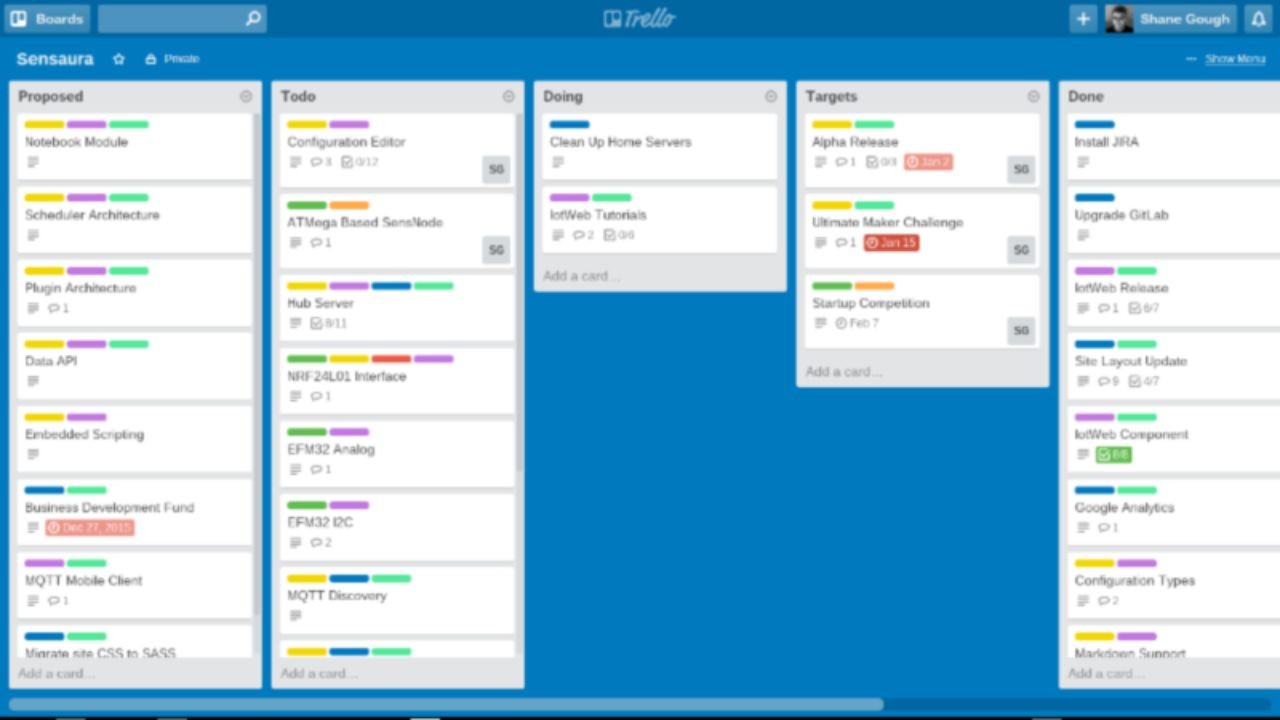
Create one workspace per team or program and standardize naming so boards are easy to find.
Limit admin rights to a few owners and keep membership accurate to prevent accidental changes. Review structure monthly and adjust lists or fields as the project evolves.
Create a Board, Invite Members, and Define Permissions
Spin up a new board and add teammates with the access level they need to view or edit cards.
Use workspace membership for broad collaboration and board-level invites for specific projects that need tighter control.
Card comments and roles set expectations without heavy process or separate documents. This approach creates clarity while staying flexible for changing priorities.
Structure Lists and Cards for Clarity and Flow
Keep lists aligned to your real process and avoid extra stages that slow movement. Make card titles short and consistent and use labels to convey type or priority instantly.
Add only the checklists and custom fields you will actually use so forms stay fast to update. Trello’s quick-add features help you capture many tasks at once and refine details later.
Add Automation to Remove Repetitive Work
Start with one rule that assigns owners and sets due dates when a card enters a key list. Add buttons for common actions like “Mark ready for review” to reduce clicks and mistakes.
Use variables to reference card fields in comments or descriptions so routine updates are consistent. Support documentation explains best practices as you expand your automation library.
Where and How to Download the Trello Boards App
Trello works in any modern browser and offers native apps for iOS, Android, and desktop platforms.
The official platforms page links to current downloads and shows supported environments.
Installing the mobile app lets you capture ideas, scan notifications, and move cards during meetings or travel. Keeping the desktop or web app open gives you real-time visibility across multiple boards.
Download for iOS and Android From Official Stores
On iPhone and iPad, download Trello from the App Store and sign in with your Atlassian account to sync boards instantly.
If you have login issues, Atlassian’s iOS guide explains cookie settings that can block app sessions. On Android, install the Trello app from Google Play to access the same boards, lists, and cards with mobile notifications.
Both stores list current versions, features, and permissions so you can confirm details before installing.
First-Time Setup, Security, and Account Tips
Use a strong unique password and enable two-step verification on your Atlassian account to protect team data.
Join or create your workspace and then connect teammates using their work emails so roles stay clear.
Enable notifications on mobile for mentions and due dates to prevent last-minute surprises. Store documents on cards rather than in chat so the latest files are always with the task.
Conclusion
The fastest way to organize team tasks using Trello Boards app is to map your process, standardize card details, and automate routine steps.
With a clean setup, disciplined habits, and the right plan tier, your team can move from scattered to aligned and ship work with confidence.